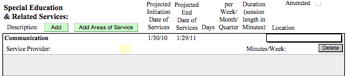
When this button is clicked, any areas of services already assigned to the student will appear, along with their begin and end dates. Service provider, details of the service schedule, and the location need to be completed by the person filling out the form. (Please note: Service provider names do NOT print when the form is printed or when a PDF of the form is created; only the title prints.)
Form 14.12 includes a “Related Service” checkbox field next to the “Minutes/Week” area that may be used to designate a related service.
Minutes per week (under the Location field) will auto-calculate.
To calculate percentage of time spent in a general education setting, fill in the “Total building instruction minutes per week (excluding lunch time)” field at the bottom of the first page, if it is not already entered.
The two fields under the “Total building minutes” field will auto-calculate once you enter a date in the “as of” field at the end of the second line. You may click on the calendar icon and choose a date that way, or click in the space in front of the icon, and manually enter the date in dd/mm/yy format.

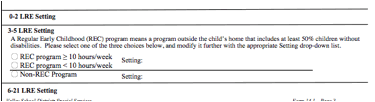
If you select the LRE setting, found at the bottom of page 2 (see below), service minutes listed on the most recent Summary of Services Matrix form will auto-calculate the LRE code and display it on the Student screen, Special tab. The calculation on the Student Special tab will be as of the current day’s date, not as of whatever date is selected or displayed on the form.
In addition, if services are assigned to staff members on the 14.1 form, those minutes will appear on that staff’s Service Roster report, available either from the Reports list (all staff), or from the Reports menu item “My Service Roster” available on the Staff screen (for the individual staff member).
Related Topics
Summary of Services Matrix - Form #14.1x