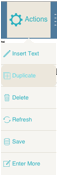
From within an individual form, click on the Duplicate button on the Form Navigation bar.
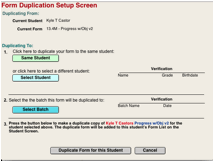
A dialog will appear; select Form to duplicate the form you are currently viewing. This will open the Form Duplication Screen shown below.
This screen displays the form being duplicated. Select either “Same Student” or “Select Student” to duplicate the form.
Note: A warning will appear if
a user attempts to duplicate an inactive form. Inactive
forms will not be duplicated.
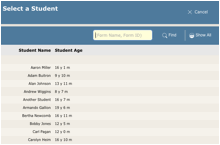
If you choose the “Select Student” button, you will get a pop-up where you can enter a student name, in full or in part, to find the correct record.
 You
must enter at least 3 characters in the top line, next to the small blue
magnifying glass. Select the student you want from the list of results by
clicking on the student name. The student name, student number, and SSID will
be displayed.
You
must enter at least 3 characters in the top line, next to the small blue
magnifying glass. Select the student you want from the list of results by
clicking on the student name. The student name, student number, and SSID will
be displayed.
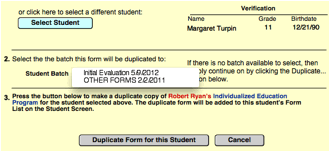
1) Ensure that you have selected the correct student, by checking the Verification data to the right.
2) If the student you’re duplicating to has multiple batches, you can select which batch you would like this form to go to from the popup menu.
3) To proceed, click Duplicate Form for this Student. You will be brought to the Student Screen of the student where the form was duplicated.