
Users can access Find mode in a variety of ways:
1. Selecting the Find button from the Navigation Bar.
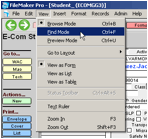
2. Selecting Find Mode from the View menu.
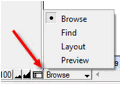
3. Switching to Find mode from the bottom of the E-Com screen.
Once in find mode, the Status Area (highlighted below) appears on the screen directly above the Navigation Bar. Please wait until you have entered Find mode to enter any data you wish to find.

The Status Area contains the symbols (used to specify find requests) and the Omit checkbox (used to confine found sets). Specific find types and examples are listed in the successive sections, with the syntax needed for each find type.
If you start a Find operation, but then change your mind, don’t click the Quit button. Instead, users can also exit Find mode in a variety of ways:
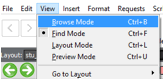
1. Switching to Browse mode from the View Menu at the top of the E-Com screen.
2. Selecting the “Cancel Find” button on the Status Area.

3. Using the Navigation Bar, navigate to another screen and back to clear Find mode. For example, switch from the Student to the Staff screen, then back to the Student screen.
4. When a find does not produce results, users are given an option to “Modify Find” or “Cancel.”
Related Topics