To find records matching all criteria specified (logical “and” search):
Example:
To find all students named Smith in a particular
elementary school, type Smith
in the Last Name field in a Find
screen and select the school from the drop-down
list under “Home School.”
Click Find.
There are two methods that can be used to find records matching at least one of the sets of criteria, but not necessarily all (logical “or” search). The second method (Extend Found Set) is particularly helpful when you have run a Find and discovered that it did not find all those students you needed.
Example (same criteria):
To include students with one condition and students with another in the found set, in the Find screen, enter the first condition in the Condition field.
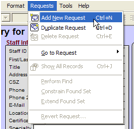
Add a new find request by selecting Add New Request from the Request menu.
Enter the second condition in the Condition field in the second request. Click Find.
Example (different criteria):
To include all students in a particular grade, and all students with a particular condition, click Find and type the grade in the Grade field.
Hit enter or click Find to perform the find.
Once E-Com has found these students, click Find again. Enter the condition you want in the Condition field.
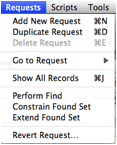
Do not click Find or enter; instead, go up to the Requests drop-down on the menu bar and select “Extend Found Set.” Once you do this, the second find will run, and will add the students with that condition to the students already found.