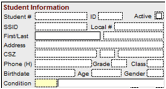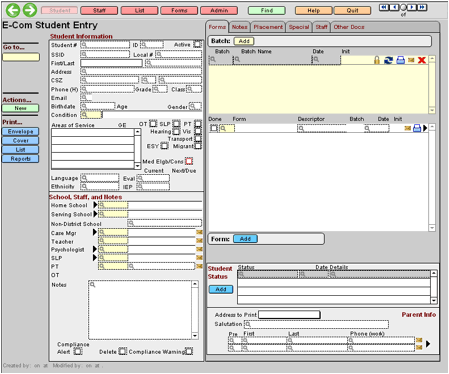
From the Student screen, click the Find button on the Navigation Bar (or use the Ctrl-F keyboard shortcut). The Student screen will display a magnifying glass in all the fields a user can search.
Note: It is very important that you use care when searching for student records. Student names may be overwritten if you do not wait for the search screen to come up. If a student name is overwritten, it may be corrected the next day by the automatic student import, if your district uses that. If your district doesn’t use that, it may be some time before the error is discovered. If you enter an SSID, you may accidentally overwrite all the data on the record, not just the name.
|
Type in search criteria, such as the student’s name or number. Click ‘Enter” on the keyboard to execute your Find.
For thorough examples of advanced search operators or for more specific examples, see “Performing Finds”. If only one student is found that matches your criteria, you will be taken directly to that student record. If more than one student is found, the ‘found set’ of students is displayed on the student listing screen, as shown below. |
||
|
|
||
|
1. Click
on the name of the student you want in order to go to that student’s record. |
2. You
may sort the list by any of the blue underlined headers, in either ascending
alpha order or descending. Click once on the header to sort A-Z, and a second time
to sort Z-A, or by most recent or least recent, if a date field. |
3. You may omit students from the current list by clicking the blue circle in front of their names. Note: This does not delete the student record, but simply hides it from view. |
Related Topics