Refreshing a Batch
For
any data management system, two types of data records can be created. Those
records can either represent:
1) a
snapshot in time - e.g., a student form;
2)
its current state - e.g., student age, Case
Manager, etc.
For
processes that occur over a very short period of time (e.g., ~2 minutes to
create/print a meeting invitation) those two data records may contain the same
information. However, for processes
over a longer period of time (e.g., ~30 days to complete an IEP), the “current
state” data may change.
In E-Com, certain student data fields, if
available when a form is created, are copied to the appropriate form fields at
that time. If that student
information later changes (for example: disabling condition, age,
grade, etc.) the data on the form will be incorrect. You can use the refresh
function to update this information.
Note
- Exercise care when using this
functionality. Users can
inadvertently change completed forms that are not locked (e.g., evaluation
forms from 3 yrs ago, last year’s IEP, etc.) so be sure you have selected the intended
batch before refreshing. If forms inside the selected batch are marked
as completed, or are locked, you will not be able to refresh the batch.
|
|
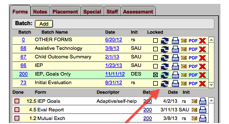
Click
on the blue Refresh icon to refresh a batch.
|
|
|
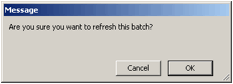
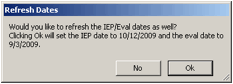
The
following dialog boxes will come up, one after the other.
The
first allows you to cancel or continue.
The
second allows you to update the student demographic data without refreshing
the IEP or evaluation dates.
If
you decide to refresh the date, check those listed in the “Refresh Dates”
dialog carefully to make sure they match what you want to use in the form.
|
Related Topics
Using a Batch
Copyright (c) 2004-2008 Macrobject Software, All Rights Reserved.
You can change this copyright message in the "Template Settings" dialog.