|
|
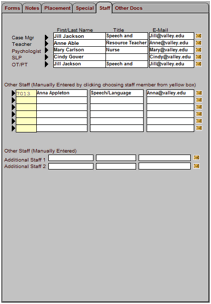
On the top of the tab, you will find the staff members currently assigned to the student via the School, Staff and Notes settings of the student screen. The next two sections, labeled “Other Staff,” allow users to add additional staff members who also work with the student. 1) To add a staff member: · If the staff uses E-Com, you may click in the yellow pop-up box and select on the desired staff member. · Adding staff members to active students from this screen will cause the student to appear on that staff member’s Other tab screen. · If the staff member does not have an E-Com entry, you may add their name to the student record using the last section on the tab, “Other Staff (Manually Entered) – this allows you to keep a record of all staff working with a student even if the staff member does not use E-Com. 2) To remove a staff member: · Delete the staff number and the rest of the fields will automatically blank out. · Manually entered staff will need to be completely manually deleted. 3) To email a staff member: Click the envelope icon. |