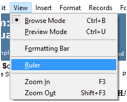
Once on the forms screen, select ‘Text Ruler’ from the ‘View’ menu.
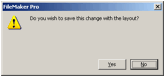
This will display the dialog seen on the left. If you want the ruler to be available each time you access the form, click ‘Yes,’ otherwise click ‘No’.
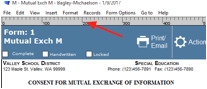
The text ruler should now be displayed as shown.
Note: The text ruler can be set to display in pixels, inches or centimeters. Your numbering will show as displayed if your ruler is using the “inches” setting. To change this, right click on the ruler and select your desired measurement.
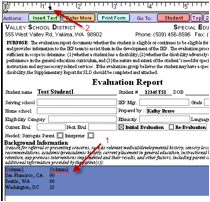
If your cursor is in a text field, you will be able to edit tabs for the text ruler.
To do so:
1) Select the text for which you would like to modify the tab stops.
2) Click on the text ruler where you want the tab stop to be. To fine tune placement of the tab, drag the tab stop to the desired location.
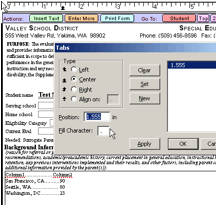
Double clicking on the tab stop displays the ‘Tabs’ dialog (left). You may change other tab formatting here. Be sure to highlight the desired text before double clicking.
Tab type suggestions: Center
for column headings, left for
text in columns, and right for numbers with no decimal points. The ‘Align On’
option allows a column of numbers with decimals to line up on the decimal
point.
Fill Character option: You can fill the tab spacing with a character. For example, in the image left, the tab for column 2 has been changed to center justified and the tab space has been filled with periods.