Using the Text Library
E-Com is built with a table of pre-defined
blocks of text called Text Libraries. They make it easier to enter frequently
needed text blocks into any field on any form.
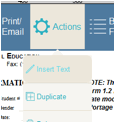
All forms have an ‘Insert Text’ button on
the Form Navigation Bar
that can be used to copy any block of text from the library into your
form. Other specialized libraries
are also available via specific form buttons, including: ‘Set Goal,’ ‘Insert
Test,’ and ‘Standards.’
All Text Library entries can be edited
by your E-Com system administrators and new library entries can easily be
added.
|
|
To insert an entry from the text library
into your form, click the Insert Text button from the Form Navigation Bar.
|
|
|
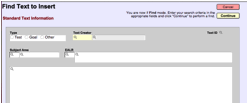
This screen will be displayed, allowing
you to enter your search criteria.
Click the Continue button when
you are finished entering search criteria.
|
|
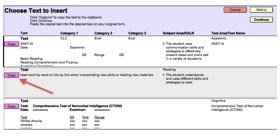
A list of matching text library entries
will be displayed.
Click the Copy button next to the
desired text entry. The text will be copied to the clipboard and you will be
returned to your original form.
 Put your
cursor in the field where you want the text inserted and choose ‘Paste’ from
the edit menu or use the keyboard shortcut Ctrl-V. Put your
cursor in the field where you want the text inserted and choose ‘Paste’ from
the edit menu or use the keyboard shortcut Ctrl-V.
Your selected text will be pasted into the
field.
|
Related Topics
Additional Form Functionality
Copyright (c) 2004-2008 Macrobject Software, All Rights Reserved.
You can change this copyright message in the "Template Settings" dialog.