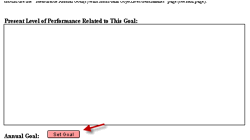
To insert specific goal text from the Text Library, click the Set Goal button on the goals and objectives form.
 If your E-Com administrator has determined
that your district will be using the “strict” method of entering goals, all
text in the Annual Goal field must be entered AND edited in the manner
described.
If your E-Com administrator has determined
that your district will be using the “strict” method of entering goals, all
text in the Annual Goal field must be entered AND edited in the manner
described.
For other districts, you will be able to enter goals using this method, or by freely typing them into the form without using the “Set Goal” functionality. You will also be able to duplicate forms and modify any goal text already entered there without opening the “Select Goal Text” dialog.
When staff select the “Set Goal” button on any goal form, they will get a pop-up window. Fields with a red asterisk are required fields and text must be entered in order for the user to set the goal. The process is as follows.
·
Select the Subject Area from the drop-down list.
(This should be a list of all the Areas of Service in your district.)
·
Enter a date into the “By the following date:”
field if it does not auto-fill.
·
“Given these conditions” is optional.
·
Select either “increase” or “decrease” from the
next field’s pop-up list, or enter another modifier.
·
Select a skill set from the drop-down list in the
next field. If none of the list items pertain, another choice may be typed
in.
·
Enter the appropriate text into the “From:” and the
“To:” fields that follow.
·
The next field, “With the following consistency,”
is optional.
·
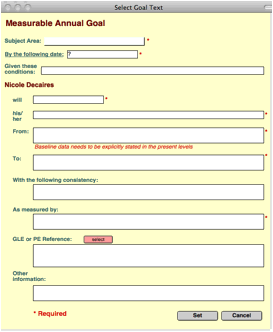 The “As
measured by” field has another drop-down list, or users may type in their own
entry.
The “As
measured by” field has another drop-down list, or users may type in their own
entry.
·
If users wish to enter a GLE or PE reference, they
may do so by either typing it into that field, or by clicking the “select”
button, and selecting it from the appropriate area in the pop-up dialog that
appears.
·
Other information may also be added.
·
Once the required fields are entered, clicking the
“Set” button will cause the entire entry to be pasted into the “Annual Goal”
field on the goal form.
In districts with the “Strict Goal Text” option set to “On,” any editing of a goal already entered in a form must happen via the “Set Goal” button. In this case, simply click the “Set Goal” button again, and when the dialog box opens, the goal text will appear in the fields of the dialog box. It may be edited there.
Goals set on either form 12.4 or 12.7 will appear automatically on forms 13.1, 13.2, or 13.3 if the IEP dates and Student ID numbers on both forms match.