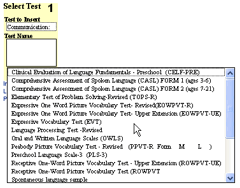
Select the testing area followed by the test name from the pop up lists provided then click the Insert Test button.
The pre-formatted text block will be inserted into the form.
The text can be edited as desired, including changing font sizes or other styling. See Formatting Text on Forms for more information.
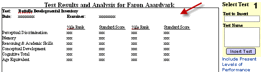 To line up the columns of numbers, the
best option is to use tabs*.
To line up the columns of numbers, the
best option is to use tabs*.
* Clicking the tab key in E-Com takes you from field to field on the
forms. To get a Tab character,
type Control-Tab (Option –Tab on a Macintosh). See “Using the Text Ruler” to further fine tune tab
alignment.